라즈베리파이 원격접속 환경설정
1 SSH( Secure Shell ) 원격 접속
유닉스나 리눅스에서 가장 대표적인 원격 접속 프로토콜은 Telnet 이다. SSH는 Telnet이 가지고 있는 보안 문제를 보완한 프로토콜이다. SSH를 이용한 원격접속을 사용하려면, “raspi-config” 의 “5. interfacing option” 에서 “P2. SSH” 를 활성화 시킨다. 이는 SSH Server Demon 프로그램을 부팅 시 실행한다는 것이다. 따라서 SSH Client 프로그램을 통해 SSH 원격 접속이 가능하다. 물론 이 때 Sever( 라즈베리파이 )와 Client( PC, 스마트폰, Tablet 등 )는 같은 네트워크에 연결되어 있어야 하며, 클라이언트 기기에서 SSH 클라이언트 SW를 통해 접속한다. 리눅스나 유닉스의 경우, 터미널에서 아래와 같이 ssh 명령으로 접속 가능하다.

MS윈도우에서 사용 가능한 대표적인 SSH 클라이언트 프로그램으로는 putty가 있다.
Download Page : https://www.chiark.greenend.org.uk/~sgtatham/putty/latest.html
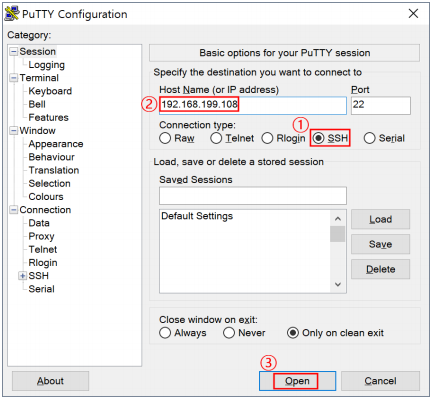
① Connection type
- SSH 선택
② Host Name
- 라즈베리파이의 IP주소 입력
③ Open
* Saved Sessions 메뉴를 이용하여 현재 SSH 접속환경을 저장해두고 사용 할 수 있다.
* Cantegory의 Window 항목 하위 Appearance 설정에서 화면 폰트 관련 설정을 변경할 수 있다.
* Saved Sessions 메뉴를 이용하여 현재의 접속환경을 저장해 두고 사용 할 수 있다.
2 VNC( Virtual Network Computing ) GUI원격 접속
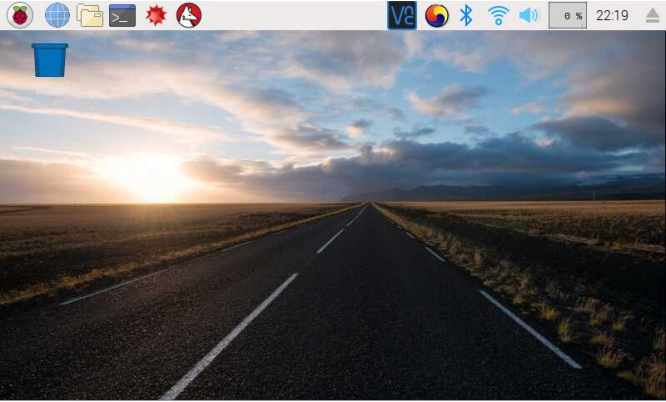
Raspbian-Stretch 는 Real VNC 서버가 지원된다. 따라서 다른 기기에서 Real VNC 클라이언트 프로그램을 이용한 GUI원격 접속을 할 수 있다.
* 라즈베리파이파이 설정
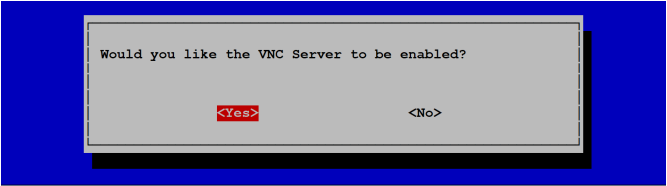
VNC를 이용한 GUI 원격제어를 사용하려면 라즈베리파이의 설정을 변경해 주어야 할 것이 있다. 기 위한 라즈베리파이 설정은 raspi-config 메뉴의 5. Interfacing options 의 P3. VNC 항목에서 VNC Server활성화 여부 질문에서 를 선택하는 것이다.
* 클라이언트 설정
1. 웹브라우저에서 https://www.realvnc.com/en/connect/download/vnc/ 페이지를 연다.
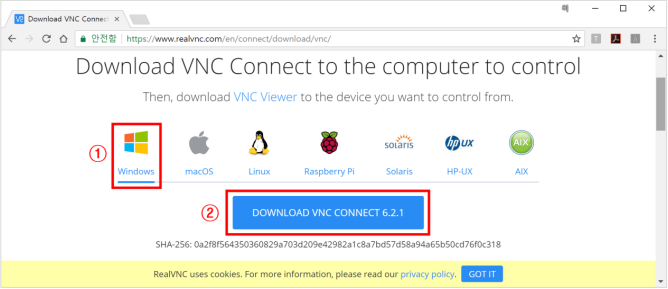
2. 사용 하는 운영체제를 선택 후, “DOWNLOAD VNC VIEWER” 클릭하여 “VNC VIEWER” 다운로드.
3. 다운로드한 VNC VIEWR를 실행
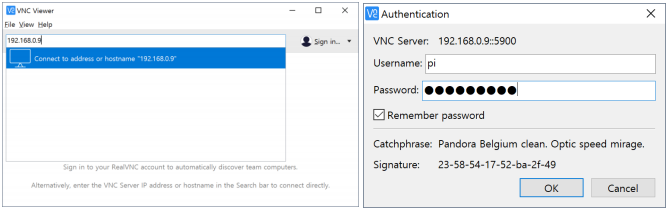
4. 원격 연결할 라즈베리파이의 IP 주소 입력 후 Enter.
5. 팝업창의 Username에 “pi”, Password에 “pi” 의 패스워드 입력 후, “OK” 버튼 클릭.
3 “Notepad++”를 이용한 원격 개발환경
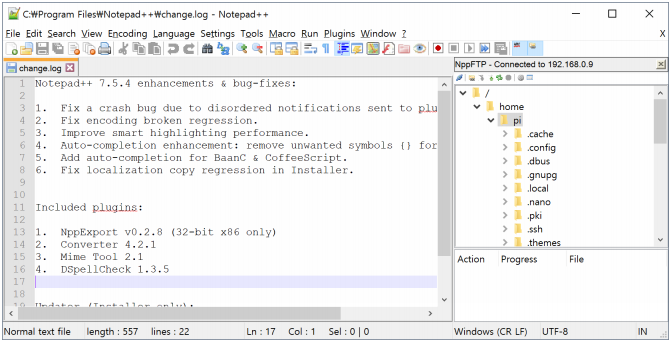
“Notepad++” 에디터는 sftp( SSH Transfer Protocol )를 지원하는 MS윈도우용 free source code editor이다.
1. 다운로드( https://notepad-plus-plus.org/repository/6.x/6.7.4/npp.6.7.4.Installer.exe ) 및 설치, 실행
2. NppFTP Plugin을 이용한 개발환경 설정
2-1 “Show NppFTP Window” 아이콘 클릭.

2-2 NppFTP Window의 “Setting” 아이콘( 톱니바퀴 모양의 아이콘 ) 클릭 후, “Profile settings” 선택.
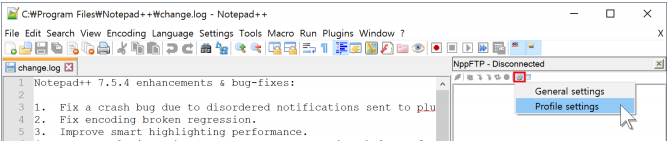
2-3 “Profile settings” 창에서 “Add new” 버튼 클릭.
2-4 “Adding profile” 팝업에서 이 연결의 이름 입력 후 “OK” 버튼 클릭.
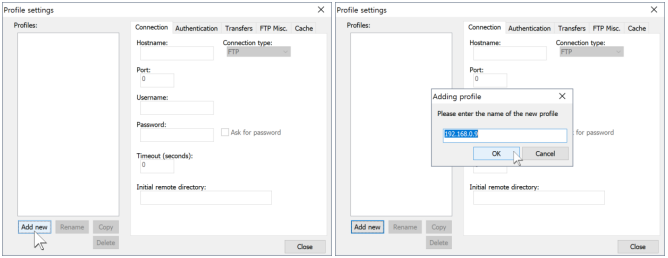
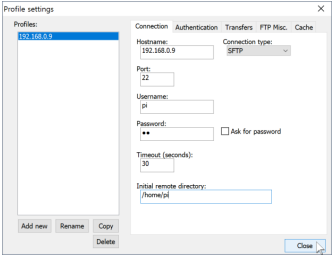
2-5 Profile 세부 항목 작성 후 “Close” 버튼
Hostname: 라즈베리파이의 IP주소
Connection type: SFTP
Username: pi
Password: 라즈베리파이 로그인 패스워드
Initial remote directory: /home/pi
2-6 NppFTP Window의 “(Dis)Connect” 아이콘 클릭 후, 추가한 profile 선택.

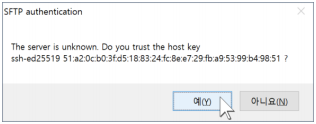
2-7 “SFTP Authentication” 팝업 에서 “예(Y)” 버튼 클릭.