


[Serial] ST Yuji Kawano, Engineer (27) - Using a GNSS Module, Challenge Map Tracking! - GUI Edition (Settings Change 2)
 Published2023.02.28 09:21
You can use the wizard and manually manipulate the bits directly.
Use FW Configuration when wizard operation is not possible
[Editor's Note] When people think of semiconductors, they typically think of familiar semiconductors like computer CPUs and memory. Conversely, MCUs (Micro Controller Units), the core semiconductors that power electronic devices, are widely used in virtually every electronic device we encounter, yet they remain relatively unfamiliar to the general public. Recently, MCUs have been highlighted in the media due to the semiconductor shortage, and are beginning to attract the attention of the general public. Accordingly, this magazine has prepared a place to learn about MCUs through a series of articles by Yuji Kawano, manager at STMicroelectronics, a company specializing in MCU semiconductors.
 This is the next part of the explanation of how to use the GNSS (Global Navigation Satellite System) evaluation board environment using the STM32 Nucleo.
We will explain how to change the settings of Teseo-LIV3F (GNSS module) using the GUI tool (TESEO-SUITE).
There are two ways to change it: using a wizard and manually manipulating the bits. This time, I will introduce the direct manipulation method.
■ Activation within the GUI tool
As a preliminary preparation, if you want to directly manipulate the CDB (Configuration Data Block) bits, you need to 'activate' the GUI tool.
All functions of Teseo-LIV3F can be controlled by directly manipulating the CDB values within the TESEO-LIV3F module.
This method can be operated within the FW Configuration panel window. However, TESEO-SUITE must be activated to use this function.
※ How to activate
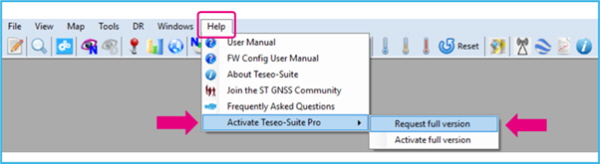
1. From the 'Help' menu bar, select HELP>Activate Teseo-Suite Pro>Request full version.
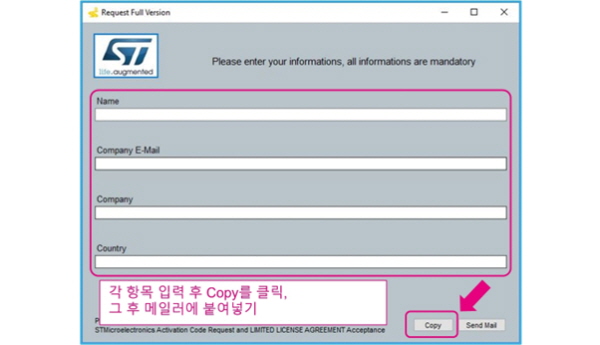
2. When the dialog box opens, fill in the required information and click "COPY." Create a new email using your preferred mailer and paste the content. The required information will be written as text. Copy the recipient and subject above the text and send.
3. Once the activation key arrives by email (this may take a few days), restart Teseo-Suite. Select HELP > Activate Teseo-Suite Pro > Activate full version from the menu bar.
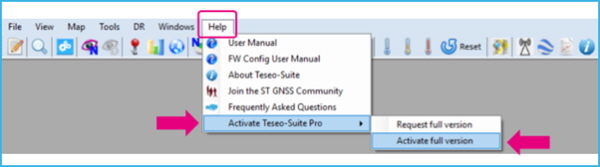
An input dialog box will open as shown below, so copy and paste the key in the email sentence here. After that, click Activate to complete.
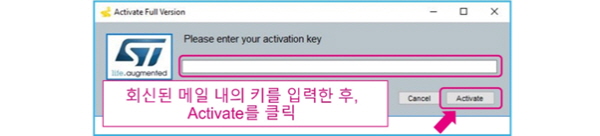
This allows manual manipulation of the FW Configuration.
■ Adding the GALILEO constellation (European satellite system)
○ CDB Edit
First, connect the device to the PC and launch TESEO-SUITE. As an example, let's add Europe's GALILEO. Once activation is complete, open the FW Configuration window.
From the menu bar, select Tool>FW Configuration>FW Configuration Panel, then a dialog box will open, so just click OK (with 'Connected Device' checked).

This is the initial screen. Select the CDB address on the left to operate. If connecting multiple devices simultaneously, also check the device number at the bottom of the screen. You can select the target device to be operated using the pull-down menu.
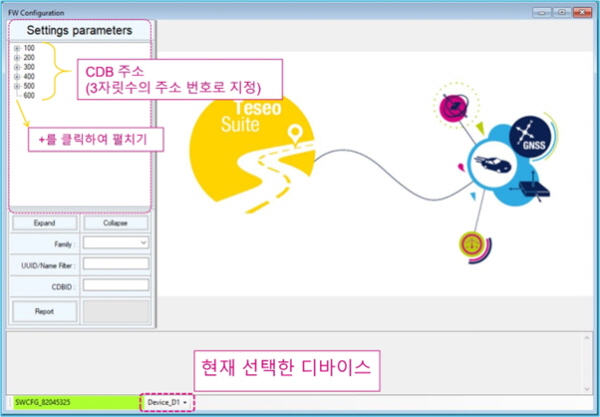
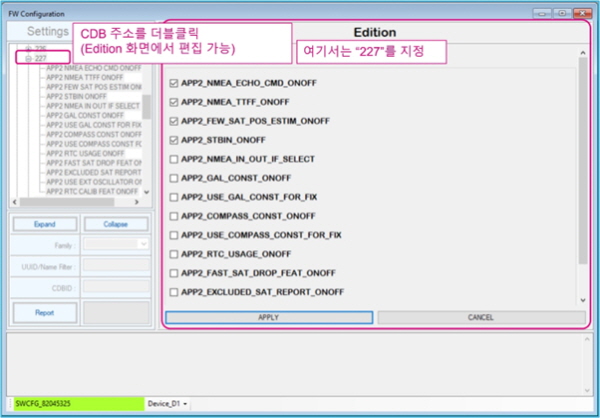
Double-click the number of the CDB you want to edit in the Settings parameters on the left or right-click the menu → select 「Edit all parameters of this CDBID」.
The parameters are displayed in the Edition section on the right, so you can change the settings by checking the items you want to manipulate and then clicking APPLY.
The GALILEO settings are in CDB 227, so open that first.
(Example) Address for setting Constellation ON/OFF
·CDB 200: GPS GLONASS/QZSS
·CDB 227: GALILEO/BEIDOU(COMPASS)
Check the following two items in the parameters:
·APP2_GAL_CONST_ONOFF
·APP2_USE_GAL_CONST_FOR_FIX
After that, click APPLY. The device's parameter update will begin, and if completed normally, 'Answer ok' will be displayed.
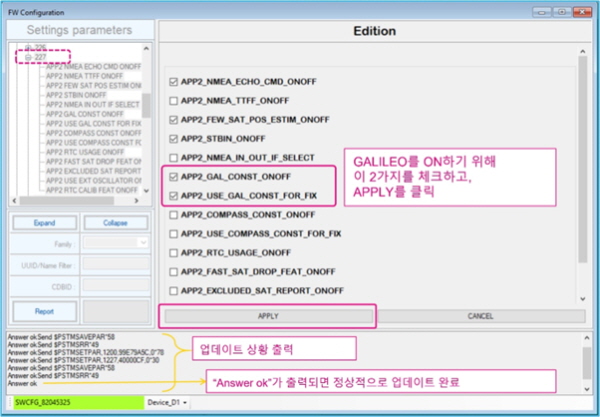
This concludes the setup.
Let's check the Satellite Signal Levels window. You'll see a new blue bar added.
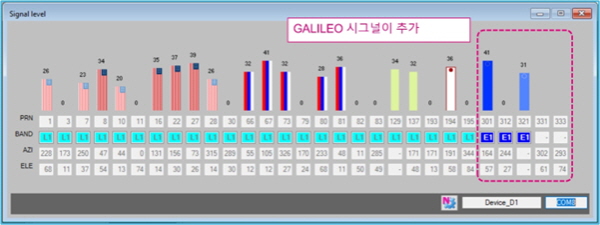
This additional GALILEO manipulation can also be configured using the Wizard. If you need to edit bits that cannot be directly manipulated using the Wizard, use this FW Configuration editor.

Comments
Related news
[Serial] ST Yuji Kawano Engineer (24) - Trying voice communication with Bluetooth® LE! Two-way call edition
MCUs are unfamiliar compared to CPUs or GPUs, but they are among the most widely used semiconductors. Let's hear from Yuji Kawano, Manager of ST System Solutions Lab, about the versatility and potential of MCUs.
2023.01.10by 명세환 기자
[Serial] ST Yuji Kawano Engineer (25) - Let's acquire latitude and longitude data using the GNSS module - Terminal Monitor Edition
Microcontrollers are unfamiliar compared to CPUs or GPUs, but they are among the most widely used semiconductors. Let's hear from Yuki Kawano, Manager at ST System Solutions Lab, about the versatility and potential of MCUs.
2023.01.17by 명세환 기자
.jpg)
[Serial] ST Yuji Kawano Engineer (26) - Using the GNSS module, challenge yourself with tracking on the map! - GUI version (setting change 1)
MCUs are unfamiliar compared to CPUs or GPUs, yet they are among the most widely used semiconductors. Let's hear from Yuki Kawano, Manager at ST System Solutions Lab, about the versatility and potential of MCUs.
2023.02.07by 명세환 기자
Intel Unveils Next-Generation 'Core Ultra Series 3' and vPro Platform for Enterprise PCs
Intel has officially unveiled the "Intel Core Ultra Series 3" for next-generation enterprise PCs and the latest vPro platform, addressing a wide range of demands from enterprise notebooks to high-performance workstations.
2026.03.26by 배종인 기자
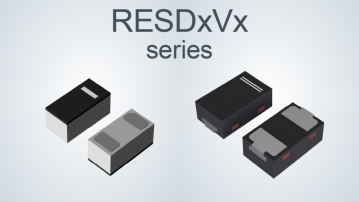
ROHM Launches ESD Protection Diode Compatible with High-Speed Interfaces of 10Gbps or Higher
Semiconductor specialist ROHM has developed the 'RESDxVx series' of ESD (electrostatic discharge) protection diodes capable of responding to next-generation high-speed data communication environments exceeding 10Gbps, simultaneously enhancing both signal quality maintenance required in high-speed interfaces and IC protection performance.
2026.03.26by 배종인 기자