


[Series] ST Engineer Yuji Kawano (29) - Testing the Sigfox Evaluation Environment Using the STM32 Microcomputer Development Board (1)
 Published2023.05.22 11:54
Test using an expansion board equipped with an RF transceiver IC
Upon SW completion, obtain Sigfox ID/PAC information via ST
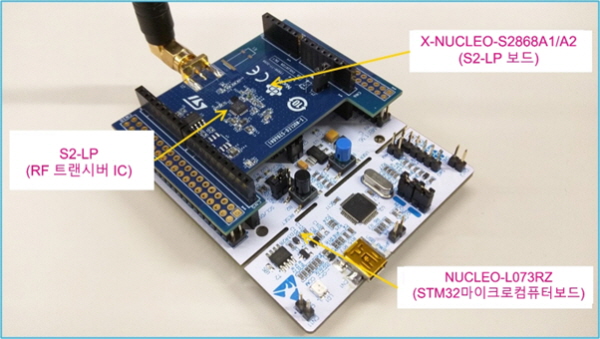
.jpg) I will test the Sigfox evaluation board environment using STMicroelectronics' general-purpose 32-bit microcomputer development board, STM32 Nucleo. An expansion board equipped with an RF transceiver IC is provided, so use it.
I will test the Sigfox evaluation board environment using STMicroelectronics' general-purpose 32-bit microcomputer development board, STM32 Nucleo. An expansion board equipped with an RF transceiver IC is provided, so use it.I will now go through the downlink (sending download data) and uplink (sending upload data) settings in the device registration configuration for Sigfox.
To use the Sigfox network, you need the ID/PAC (ID number/Authentication code of the registered board) issued per board, so prepare these first.
Since it is a task kit, everything except the hardware (software, registration/communication fees) is free to use.
■ Hardware Preparation
○ Board Setup
【Supplies】
· NUCLEO-L073RZ (or NUCLEO-F401RE, etc.)
· X-NUCLEO-S2868A1 (or X-NUCLEO-S2868A2)
Expansion board for Nucleo equipped with Sub-1GHz 868MHz transceiver IC “S2-LP”
· PC (Windows 10/11)
· USB cable (USB-mini)
First, prepare two boards and connect the Arduino connectors together. In the case of the STM32 Nucleo board, it can be registered in addition to the board mentioned above. Currently, files for the Nucleo board of the STM32L0/L1/F0/F4 microcomputer are available. In addition to the board, prepare a PC and a USB cable.
■ Software Preparation
○ Sigfox DK Installation (GUI Tool)
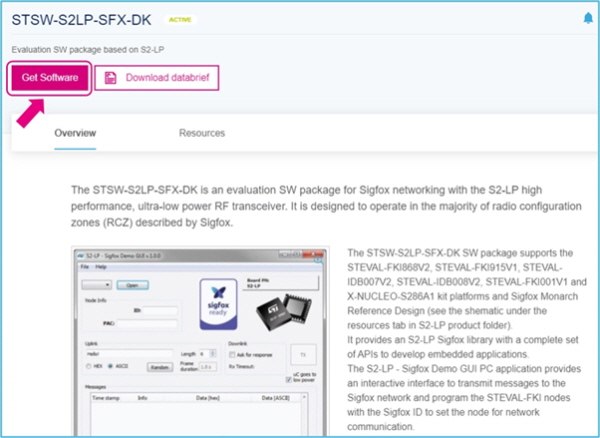
Next, download the tools necessary for registration (to obtain an ID/PAC). The software files to be written to the board are also included in this.
Download Link: STSW-S2LP-SFX-DK
After extracting the downloaded file, run the exe file to start the installation. Since the PORT driver is also installed at the same time, proceed as is.
○ Write software files to STM32 Nucleo
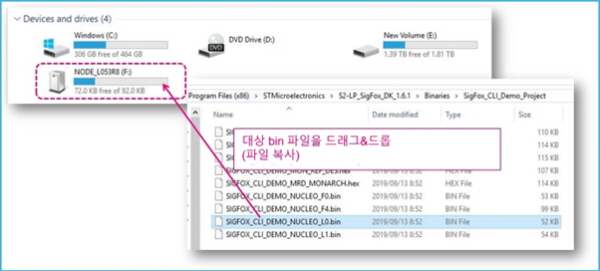
When you connect the board to a PC via a USB cable, it is recognized in the format of a USB memory device named 'NODE_XXXX'. (If it is the first time, the driver is installed first)
Since the Binaries folder under the folder created during the Sigfox DK installation (usually under the “Program Files(x86)” folder on the C drive) contains various binary files for STM32 Nucleo, drag and drop them into the previously prepared “NODE_XXXX”.
By doing this, the program file is written to the STM32 microcomputer.
Example: In the case of NUCLEO-L073RZ,
'C:\Program Files (x86)\STMicroelectronics\S2-LP_SigFox_DK_x.xx\Binaries\SigFox_CLI_Demo_Project'
Complete “SIGFOX_CLI_xxxx_NUCLEO_L0.bin” inside by dragging and dropping it onto “NODE_L073RZ”.
■ Preparing the ID/PAC for the Sigfox device
Once the software is ready, obtain Sigfox ID/PAC information via ST.
○ Sigfox DK startup
First, with the board connected to the PC, launch 'S2-LP_SigFox_DK' from Windows 'Start'. (It is located in the STMicroelectronics folder.)
It is also OK to click the icon with the same name on the desktop.
style="text-align: center;">
.jpg)
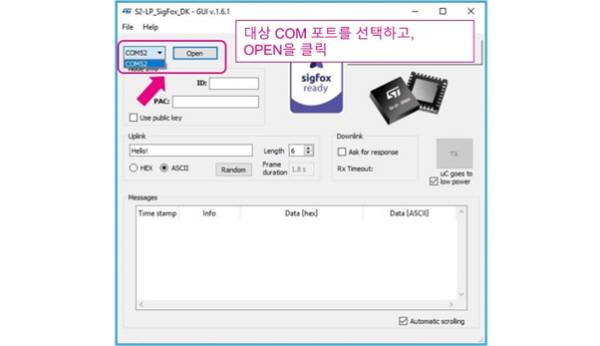
After starting, select the COM port of the board to be used and click 'Open'.
(Generally, when one board is connected, only one COM port is visible, so there is only one option.)
○ Board Registration
The Sigfox ID and PAC (Authorization Code) for ST boards are not recorded on the board at shipment, but are issued via ST.
If you connect a board that is not registered with a PAC (when using it for the first time), a different registration dialog box will open as shown below, so simply click 'Next'. (Step 1)
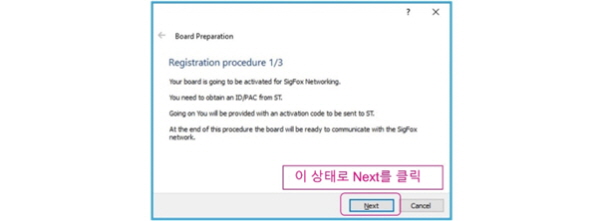
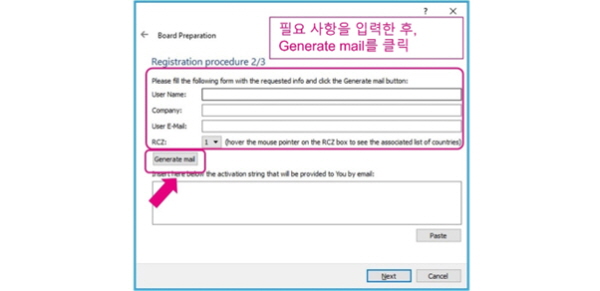
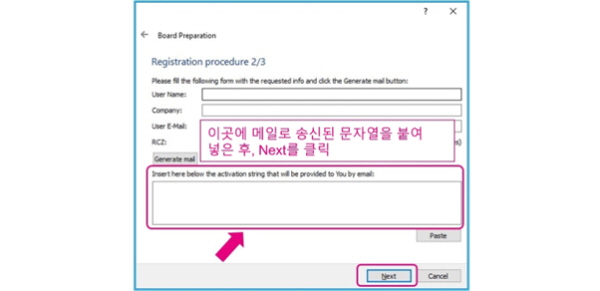
Next, enter the required information below and click 'Generate mail'. (Step 2)
Note that you should not click Next here yet; leave the dialog box as is.
【Input Items】
- name
- Company Name
- E email address
- RCZ Number (Radio Configuration Zone)
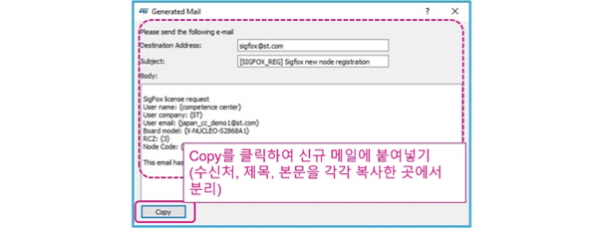
If you click 'Generate mail', the following email content for the registration request will be automatically generated. Click Copy to copy the entire content, then compose a new email using any mailer and paste it there. Separate the recipient, subject, and body from the copied location and send them separately.
When you send it, an email will arrive from 'sigfox@st.com', so copy the activation code in the body.
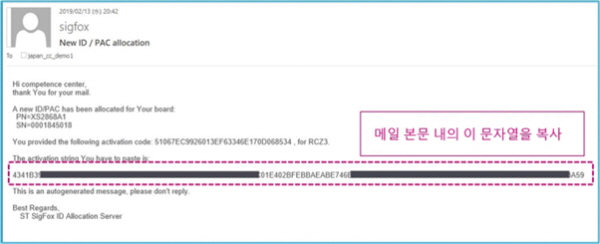
Paste the copied activation code into the blank space in the dialog box that you left as is in Step 2, then click Next.
With this, the ID and PAC preparation is complete, so write down this number.
Next, click Finish to close.
.jpg)
The next installment will continue the series.

Comments
Related news
.jpg)
[Serial] ST Yuji Kawano Engineer (26) - Using the GNSS module, challenge yourself with tracking on the map! - GUI version (setting change 1)
MCUs are unfamiliar compared to CPUs or GPUs, yet they are among the most widely used semiconductors. Let's hear from Yuki Kawano, Manager at ST System Solutions Lab, about the versatility and potential of MCUs.
2023.02.07by 명세환 기자
.jpg)
[Serial] ST Yuji Kawano, Engineer (27) - Using a GNSS Module, Challenge Map Tracking! - GUI Edition (Settings Change 2)
MCUs are unfamiliar compared to CPUs or GPUs, yet they are among the most widely used semiconductors. Let's hear from Yuki Kawano, Manager at ST System Solutions Lab, about the versatility and potential of MCUs.
2023.02.28by 명세환 기자

[Serial] ST Yuji Kawano, Engineer (28) - Using GNSS Modules to Challenge Map Tracking! - GUI Edition (3)
Microcontrollers are unfamiliar compared to CPUs or GPUs, but they are among the most widely used semiconductors. Let's hear from Yuki Kawano, Manager at ST Systems Solutions Lab, about the versatility and potential of microcontrollers.
2023.04.17by 명세환 기자
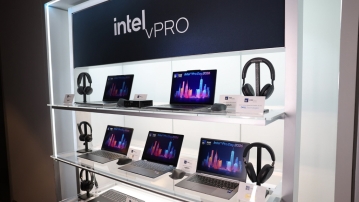
Intel Unveils Next-Generation 'Core Ultra Series 3' and vPro Platform for Enterprise PCs
Intel has officially unveiled the "Intel Core Ultra Series 3" for next-generation enterprise PCs and the latest vPro platform, addressing a wide range of demands from enterprise notebooks to high-performance workstations.
2026.03.26by 배종인 기자
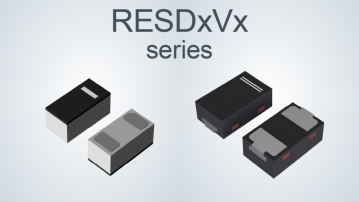
ROHM Launches ESD Protection Diode Compatible with High-Speed Interfaces of 10Gbps or Higher
Semiconductor specialist ROHM has developed the 'RESDxVx series' of ESD (electrostatic discharge) protection diodes capable of responding to next-generation high-speed data communication environments exceeding 10Gbps, simultaneously enhancing both signal quality maintenance required in high-speed interfaces and IC protection performance.
2026.03.26by 배종인 기자